10 Best Shopify Trust Badge Apps in 2026 to Boost Conversions
- Updated: September 16, 2026
Table of Contents
The best free Shopify trust badge app for most stores is Hoppy Trust Badges & Icons. It is completely free, Built for Shopify, and the top-rated app in the category. Conversion Bear is the lightest option (under 30 KB) and also fully free. If you want badges bundled with urgency tools, Avada Boost Sales does it at no cost. The only app on this list that gives you an earned third-party seal rather than an image is TrustedSite.
Which app you pick matters less than where the badges go, and no badge compensates for a checkout that itself needs optimization. Two or three badges directly below the Add to Cart button, one row of payment icons in the cart, and one security badge near the payment fields will outperform a page covered in seals. The comparison below is followed by placement, setup and measurement guidance so the badges actually do something once installed.
10 best Shopify trust badge apps
| App | Best for | Pricing | Rating (reviews) | Checkout extension | Custom uploads |
|---|---|---|---|---|---|
| Hoppy Trust Badges & Icons | Top-rated, fully free | Free | 4.9 (890) | Yes | Yes |
| Essential Trust Badges & Icons | Clean design, product pages | Free plan; paid tiers | 5.0 (1,000+) | No | Yes |
| SEOWILL Trust Badges & Icon | Speed, multilingual stores | Free | 4.9 (646) | No | Yes |
| Conversion Bear Trust Badges | Lightest free option | Free | 4.8 (346) | No | No |
| Avada Boost Sales Trust Badges | Badges + urgency tools | Free | 5.0 (1,500+) | Yes | Limited |
| ShopClimb Trust Badges | Geo-aware payment icons | Free; from $5.99/mo | 4.9 (125) | Yes ($19.99 plan) | Yes |
| Iconito Trust Badges & Icons | Design control | Free; from $4.99/mo | 4.8 (165) | No | Yes |
| XB Trust Badges & Trust Icons | Newest, geo-targeting free | Free | 5.0 (42) | No | Yes |
| TrustedSite | Verified security certification | Free to 500 visits; from $39/mo | 4.2 (194) | Yes | N/A |
| Hextom: Upsell Sales Boost | Badges inside a 30-tool suite | Free; trust badges from $9.99/mo | 4.8 (1,500+) | No | Yes |
“Checkout extension” means the app ships a Shopify checkout UI extension. On Shopify Plus that lets you place badges inside the checkout steps; on other plans, extensions can only appear on the thank-you and order status pages.
The 10 best Shopify trust badge apps
Ordered roughly by current standing in the Shopify App Store badge category. Every app below is free to install and adds badges without editing theme code.
1. Hoppy Trust Badges & Icons
Rating: 4.9 (890 reviews) · Pricing: Free · Built for Shopify
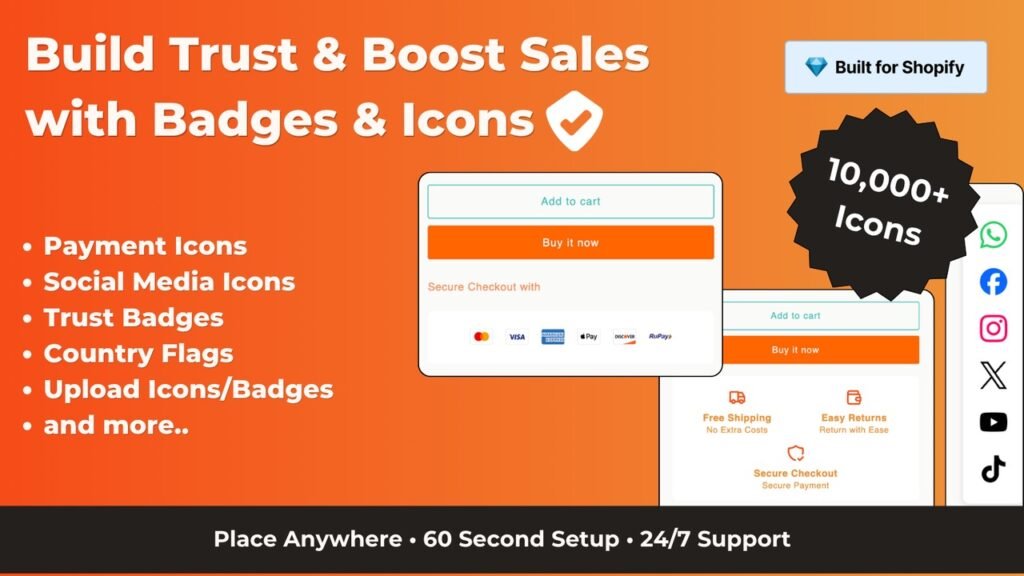
Hoppy launched in October 2024 and has moved to the top of the App Store’s badge category since, largely because everything is free and it does the core job cleanly: payment icons, security seals, guarantee badges, country flags and social icons, placed through theme editor blocks.
- Entire feature set free, no tiers, no watermark
- Very large payment icon library including regional methods such as RuPay and Stripe-branded marks
- Custom icon upload, separate desktop and mobile sizing, scheduling, and geo-targeting on banners
- Ships a checkout extension, so Plus merchants can place badges inside checkout
Limitation: No built-in analytics, so you measure impact through Shopify reports.
Best for: Any store that wants a full-featured badge app at no cost.
2. Essential Trust Badges & Icons
Rating: 5.0 (1,000+ reviews) · Pricing: Free plan available · Built for Shopify
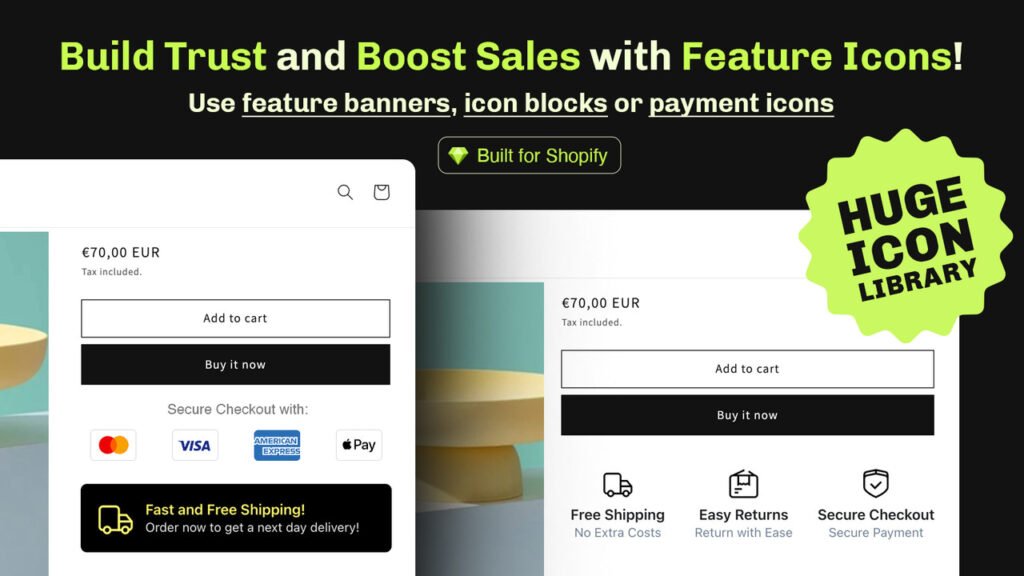
Essential is the most-reviewed dedicated badge app in the category with a perfect rating, and its strength is restraint. Badges look native to the theme rather than pasted on, which matters on product pages where the layout needs to stay focused around one button.
- Custom icon uploads with full colour, font and size control
- Feature icons and guarantee text blocks, not just image badges
- Scheduling and country-based display rules
- Support team regularly applies custom CSS tweaks on request
Limitation: The built-in icon library is smaller than Hoppy or Iconito, so brands with specific needs often upload their own.
Best for: Brands that care about design consistency, and subscription product pages where the badge row sits beside the Subscribe button.
3. SEOWILL Trust Badges & Icon
Rating: 4.9 (646 reviews) · Pricing: Free · Built for Shopify
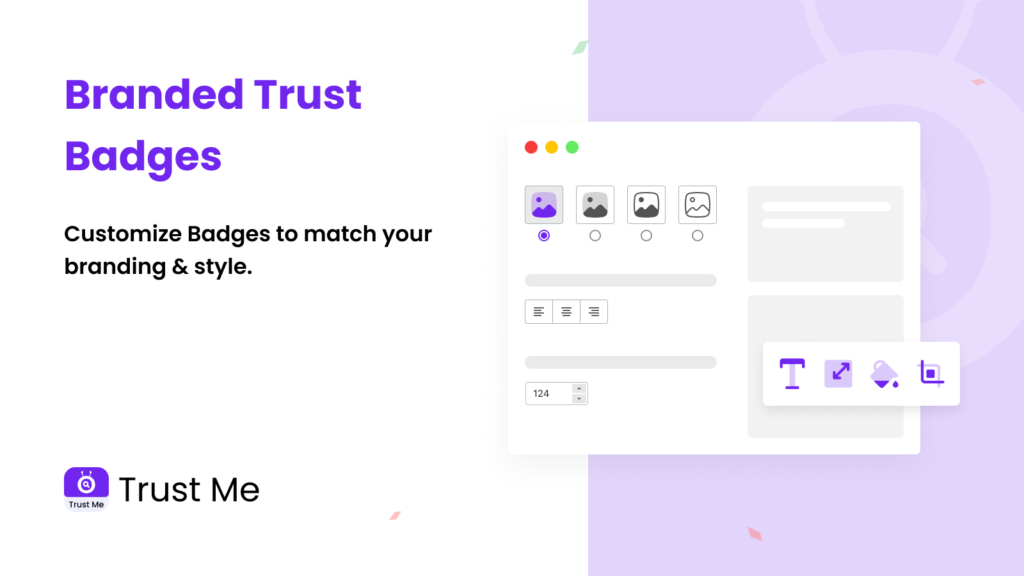
Formerly SEOAnt (same developer, CWILL/Channelwill), SEOWILL offers one-click selection of payment badges, SSL seals and shipping guarantees with a live desktop and mobile preview before you publish.
- Free with no paid tier
- Interface available in 17 languages, useful for multilingual storefronts
- Animations, scheduling and custom icon support
- Works alongside Loox, PageFly and Spocket
Limitation: The rebrand means older tutorials and screenshots may not match the current interface.
Best for: Stores that treat page speed as a hard constraint, and international storefronts.
4. Conversion Bear Trust Badges
Rating: 4.8 (346 reviews) · Pricing: Free
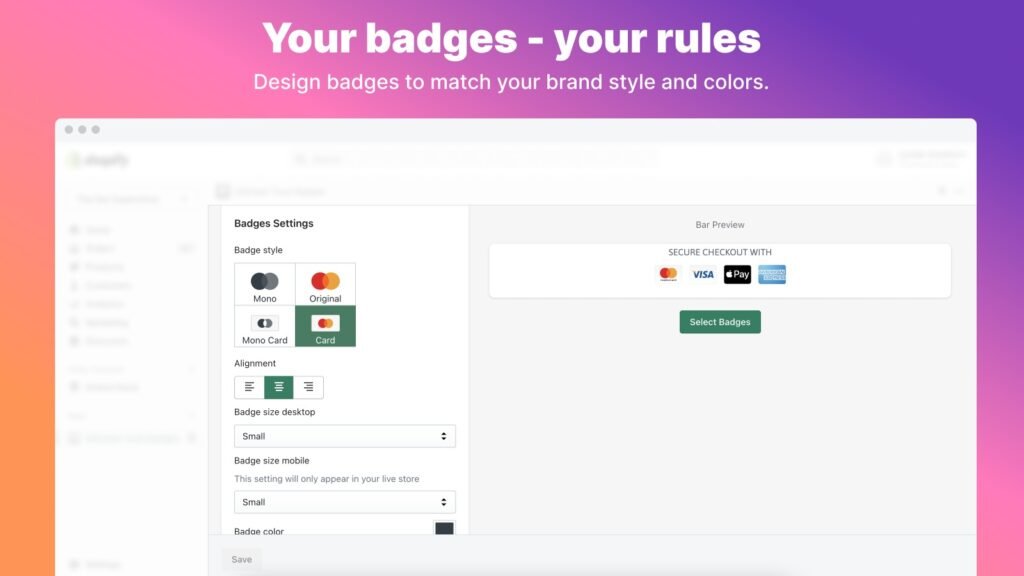
Conversion Bear Trust Badges is the lightest option on this list. Over 300 ready-made badges, a script under 30 KB, and separate sizing for desktop and mobile. New designs are added on merchant request.
- No paid tier, no feature gating
- Original or custom-branded badge colours
- One-click placement on product page, cart or footer
- Setup takes under ten minutes
Limitation: No custom uploads and no analytics, and a few 2026 reviews mention dashboard access problems.
Best for: New stores that want professional badges live today without adding weight to the page.
5. Avada Boost Sales Trust Badges
Rating: 5.0 (1,500+ reviews) · Pricing: Free
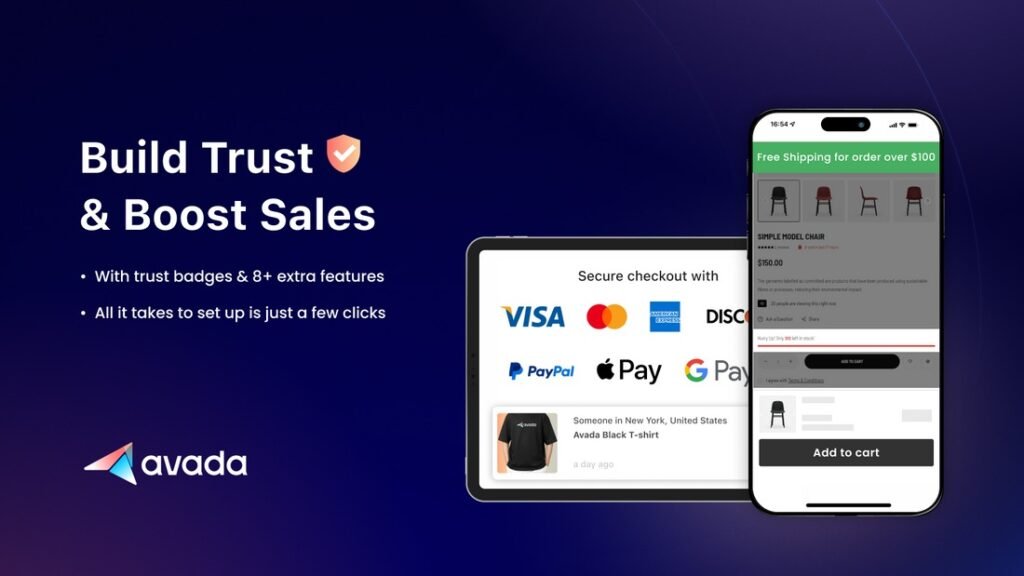
Avada bundles trust badges with real-time purchase notifications, sticky add-to-cart and free shipping bars in one dashboard, with no paid plan. If you want urgency and trust from a single install, this is the one.
- Trust badges, sales pop-ups, sticky add-to-cart and shipping bar at no cost
- Integrates with Judge.me, Loox, Ali Reviews, PageFly and EComposer
- Ships a checkout extension for Plus merchants
- 24/7 live chat support that merchants consistently rate highly
Limitation: More settings to configure than a badge-only app, and the badge library is smaller than dedicated tools.
Best for: Growing stores that would otherwise install three separate conversion apps.
6. ShopClimb Trust Badges
Rating: 4.9 (125 reviews) · Pricing: Free plan; Premium $5.99/mo; Plus $19.99/mo
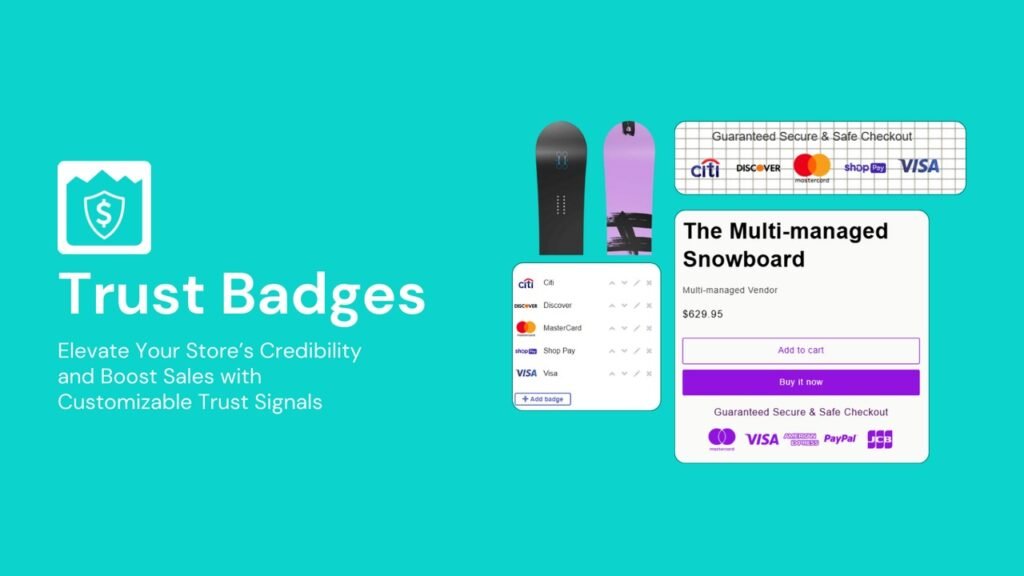
ShopClimb’s distinguishing feature is geolocation-aware payment logos: a shopper in Germany sees Klarna and iDEAL, a shopper in the US sees Shop Pay and PayPal. It is also one of the few apps that places badges inside the checkout for Shopify Plus stores.
- Free plan: 145 payment badges, drag-and-drop editor, up to 250,000 pageviews a month
- Premium ($5.99): geolocation badges, 670+ badge designs, homepage placement, custom CSS
- Plus ($19.99): badges inside checkout, concierge setup, unlimited pageviews
- Custom badge uploads and animated badges
Limitation: Small review base for an app that launched in 2017, and checkout placement requires both the top plan and Shopify Plus.
Best for: International stores, and Plus merchants who want badges in the checkout steps.
7. Iconito Trust Badges & Icons
Rating: 4.8 (165 reviews) · Pricing: Free plan; paid from $4.99/mo · Built for Shopify
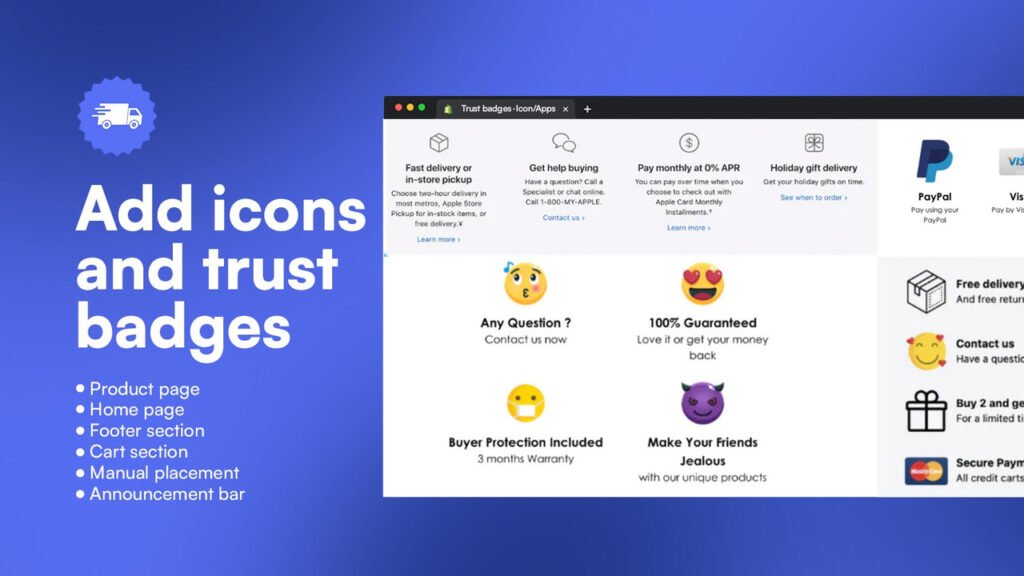
Over 5,000 badge and icon options with colour, font and spacing control, placeable on product pages, cart, footer, homepage and custom locations. Works with PageFly and GemPages.
- Largest icon library on this list
- Custom icon uploads
- Manual placement for precise positioning next to the buy button
Limitation: The free plan caps you at 5,000 page views a month and three icons per block, so most active stores will need a paid tier.
Best for: Brands where the badge has to match a strict visual identity.
8. XB Trust Badges & Trust Icons
Rating: 5.0 (42 reviews) · Pricing: Free · Built for Shopify
XB Trust Badges & Trust Icons is the newest app on this list, launched in December 2025. It covers trust badges, feature icons, shipping and guarantee badges with a block-based editor, and includes geolocation targeting on the free plan, which competitors usually charge for.
- Free with no tiers
- Geo-targeting to show different badges by visitor country
- Custom icon uploads and separate desktop and mobile versions
- Interface in 18 languages
Limitation: Small review base means less track record.
Best for: Merchants who want geo-targeted badges without paying for them and are comfortable with a young app.
9. TrustedSite
Rating: 4.2 (194 reviews) · Pricing: Free up to 500 visits/mo; Pro from $39/mo
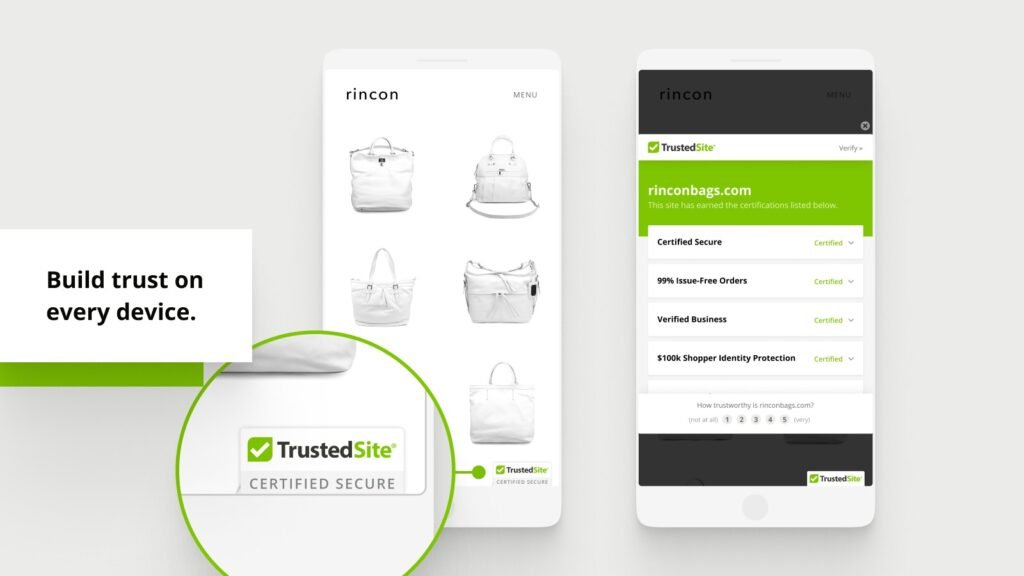
Formerly McAfee SECURE. TrustedSite scans your store for vulnerabilities and verifies business contact details before issuing a seal, and shoppers can click the seal to confirm it is real. That verification is the product; the badge is just the visible part.
- The only earned certification on this list
- Free plan includes Certified Secure and Verified Business certifications plus a floating trustmark
- Pro plans add eight certifications, eleven badge designs and shopper identity protection
- Ships a checkout extension
Limitation: By far the most expensive option. Pricing scales with traffic ($39 for 2,000 visits, $75 for 5,000, $125 for 10,000), and the lower rating reflects billing complaints from merchants on the free tier.
Best for: High-ticket or luxury stores where a shopper is likely to click the seal and check.
10. Hextom: Upsell Sales Boost
Rating: 4.8 (1,500+ reviews) · Pricing: Free plan; Basic $9.99/mo · Built for Shopify
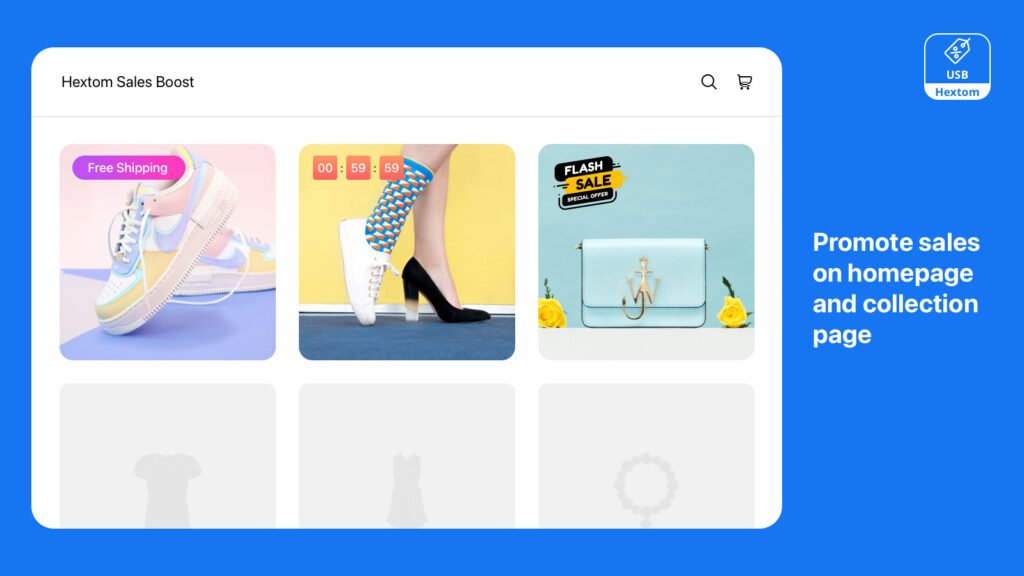
Formerly Ultimate Sales Boost. Hextom combines trust and payment badges with 30+ other tools: countdown timers, stock counters, free shipping messages, BOGO, bundles and upsells, across home, collection, product, cart and checkout pages.
- Free plan includes payment badges, countdown timers and free shipping messages
- Trust badges, image labels and geo-targeting unlock on the $9.99 Basic plan
- Targeting rules by product, collection, customer and page
- Works with page builder apps
Limitation: 30+ widget types is more than most merchants need, and trust badges specifically are not on the free plan.
Best for: Subscribe-and-save launches or promotions where confidence and urgency both matter. Merchants who mainly want the upsell and cross-sell features will find dedicated apps go deeper.
Where to get free trust badges for Shopify
You do not need to buy badge graphics. The three legitimate sources:
Payment providers’ brand pages – Visa, Mastercard, American Express, PayPal, Apple Pay, Google Pay, Klarna and Shop Pay all publish current official logo assets with usage guidelines. Use these rather than an app’s redrawn version, because outdated payment logos are a visible sign of an unmaintained store.
Shopify’s built-in payment icons – Every theme can display accepted payment icons in the footer from Theme Settings, using the methods you actually have enabled in Shopify Payments. No app required.
App badge libraries – Every app above includes free guarantee, shipping and security badges. Policy badges (free shipping, 30-day returns, money-back guarantee) need no third-party verification because they describe your own policy, but only use them if the policy is real.
Types of trust badges
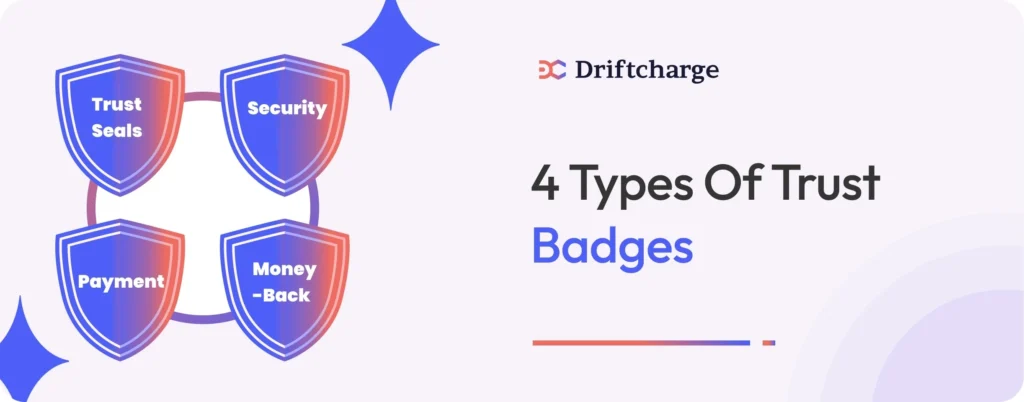
Using the wrong type in the wrong place is the most common reason badge strategies underperform. Each type answers a different question.
Security badges (SSL Secure Checkout, TrustedSite) answer “Is my card data safe?” Most effective at checkout, near payment form fields.
Payment badges (Visa, Mastercard, PayPal, Shop Pay) answer “Is this a normal store?” Recognition, not safety, is the mechanism. Best in the cart and near the checkout button.
Guarantee and policy badges (30-Day Money-Back, Free Returns, Cancel Anytime) answer “What if this doesn’t work out?” Best on the product page, next to the price or below Add to Cart. For subscriptions, these carry the most weight of any badge type.
Verification and endorsement seals (BBB, review platform seals, industry certifications) answer “Why should I believe you?” Most effective for first-time visitors on the homepage and product pages.
Match the badge to the objection your audience actually has: efficacy and returns for supplements, skin suitability for skincare, delivery flexibility for pet food, variety and lock-in for coffee subscriptions.
Where to place trust badges on Shopify
Placement is timing. A badge works when it appears at the moment a shopper is about to hesitate.
Product page (highest leverage) – Shoppers are in decision mode. Place two or three badges directly below the Add to Cart (or Subscribe) button: one guarantee, one security or payment signal, and for subscriptions, one flexibility badge such as Cancel Anytime.
Cart page or drawer – Shoppers are reconsidering, and most of the common reasons for cart abandonment surface here. One clean row of payment icons with a short Secure Checkout label is enough.
Checkout – One security badge near the payment fields. Nothing more; a shopper seconds from paying does not need distraction.
Footer – Payment icons and any verified seal. This does not drive conversion directly but supports credibility on every page.
How many trust badges should you use? Two or three on the product page, one row of payment icons in the cart, one at checkout. Seven or eight badges on a page reads as unconfident rather than secure.
How to add trust badges to Shopify
Method 1: Theme editor app block (all plans)
- Install your chosen app from the Shopify App Store.
- Go to Online Store → Themes → Customize.
- Open the product template and select the section containing your Add to Cart button.
- Click Add block and choose the app’s trust badge block from the Apps tab.
- Drag it directly below the buy button, configure badges in the app, and Save.
No Liquid editing is needed and changes preview live. For most merchants this is the only method they will ever need.
Method 2: Checkout on Shopify Plus
Checkout Extensibility lets Plus merchants add app blocks to the information, shipping and payment steps. Hoppy, ShopClimb (Plus plan), Avada and TrustedSite all ship checkout extensions. Keep it to one security badge near the payment field.
Method 3: Checkout without Shopify Plus
Non-Plus stores cannot place custom content inside the checkout steps. What you can do:
- Cart drawer or cart page – The last surface you fully control before checkout. This is where non-Plus stores should put their strongest security and payment signals.
- Thank-you and order status pages – Checkout extensions work here on every plan, useful for post-purchase reassurance but too late to affect conversion.
- Checkout branding – Under Settings → Checkout you can set logo, colours and fonts, which does more for perceived legitimacy than most merchants expect.
- Accelerated checkout – Shop Pay and other one-click checkout options carry their own trust, since the shopper is paying through a wallet they already use.
In practice, product page and cart placement drive the majority of the conversion impact anyway.
Method 4: Manual Liquid placement
For precise control when an app block does not sit close enough to the button, add a snippet directly in the product form section of your theme. Duplicate the theme first and use SVG assets. Shopify’s theme documentation lists the exact section file names for your theme.
Whichever method you use, check every placement on a real phone before calling it done. Badges that sit neatly below the button on desktop can land several scrolls away on mobile.
Trust badges for subscription products
A one-time buyer decides once. A subscriber agrees to be charged again next month without any further action, and the question underneath every other hesitation is “what happens if I want to stop?” A security badge does not answer it. A flexibility badge does.
Cancel Anytime, Skip a Delivery, Easy to Pause, No Lock-In. These are conversion levers, not admissions of weakness. The perceived risk of being trapped in a recurring charge is one of the most consistent barriers to first-order subscription conversion, and a flexibility badge next to the Subscribe button removes it more reliably than a discount does.
It also shapes retention. A subscriber who converted with full confidence is far more likely to stay through the first 90 days, where most subscription churn happens. A subscriber who converted hesitantly begins second-guessing before the first box arrives. Badge choice on a subscription product page is the opening move of your retention strategy, not just a conversion tactic.
One caveat: a Cancel Anytime badge sets an expectation. If the actual cancellation flow is buried, or the customer portal makes pausing hard to find, the badge creates a promise the experience breaks.
The same flexibility language is also what converts one-time buyers into subscribers on a product page they already trust. The churn rate calculator shows what a modest lift in first-order subscription confidence is worth across your subscriber base.
Mistakes that undermine trust instead of building it
Displaying badges you have not earned – A Norton or TrustedSite seal without the certification destroys credibility the moment a shopper clicks it.
Over-badging – Seven icons on a product page looks like compensation, not security. Pick two or three.
Outdated payment logos – Old Visa or PayPal marks signal a store nobody maintains. Download current assets from the providers.
Badges promising what policy does not deliver – Cancel Anytime with a difficult cancellation flow, or Free Returns with a restocking fee.
Duplicating what Shopify already provides – Every plan includes SSL and Level 1 PCI compliance. Spend your badge budget on guarantee, policy and flexibility signals instead.
Badges standing in for a broken subscription flow – Trust signals on the product page cannot rescue a programme with the common subscription mistakes still in place underneath: confusing frequency options, surprise charges, or no way to skip.
How to measure whether trust badges are working
Track checkout conversion rate (sessions that complete checkout ÷ sessions that start it) as the primary metric, and abandonment at the payment step specifically as the secondary one. If abandonment stays high after badges are in place, the cause is usually elsewhere in the flow and abandoned cart recovery becomes the more useful investment. Record both for two weeks before adding badges and two weeks after, changing one placement at a time.
For subscription products, the metric that matters is subscriber retention at 60 and 90 days. Model what a sustained improvement is worth over a 12-month subscriber lifespan with the customer lifetime value calculator. Because subscriber LTV runs well above one-time buyer LTV, even a small retention gain compounds quickly.
FAQs about Shopify trust badges
What is the best free trust badge app for Shopify?
Hoppy Trust Badges & Icons and Conversion Bear are the strongest fully free options; both offer large badge libraries, no-code placement and no paid tier. Avada Boost Sales is the best free option if you also want urgency tools like sales pop-ups in the same dashboard.
How many trust badges should a Shopify store use?
Two or three directly below the Add to Cart button, one row of payment icons in the cart, and one security badge at checkout. More than four or five on a single page reduces the impact of each one and can look untrustworthy.
Can you add trust badges to Shopify checkout without Plus?
Not inside the checkout steps themselves. Non-Plus stores should place security and payment badges in the cart drawer or cart page, which is the last fully customisable surface before checkout, and can add reassurance on the thank-you and order status pages.
Do trust badges increase Shopify conversion rates?
Yes, when they address the specific hesitation a shopper has at the moment they see them. They do not create purchase intent; they remove friction for someone who already wants to buy. The effect is strongest at the product page and payment step.
Where should trust badges go on a product page?
Directly below the Add to Cart or Subscribe button, or beside the price. That is where shoppers pause before committing, and a badge anywhere else on the page is usually not seen at the decision moment.
Does Shopify already include security badges?
Shopify provides SSL encryption and PCI DSS compliance on every plan, and checkout shows a secure indicator by default. You do not need an SSL badge for security; add guarantee, policy and payment badges instead, which cover hesitations Shopify’s defaults do not.
What are the 4 types of trust badges?
Security badges (SSL, verified checkout), payment badges (Visa, PayPal, Shop Pay), guarantee or policy badges (money-back, free returns, cancel anytime), and verification or endorsement seals from third parties. Each addresses a different hesitation and belongs on a different page.
You’ve optimised your store for conversions. Now build revenue that comes back every month, without running another ad. Driftcharge is a Shopify subscription app built for DTC brands ready to grow predictable recurring revenue. Flexible plans, a self-serve subscriber portal, and built-in retention tools, all native to Shopify.

Ganesh Pawar

Join the waitlist now
Limited early access. Early joiners receive additional discounts on premium features.
Discover how